How to add inventory items from a photo with AI
Cataloguing a room by hand is slow. With AI item scanning in additem.to, you take a photo of an item and it suggests the name, brand, category and more - you just review and save. This guide covers how it works, what it fills in, how accurate it is, and what happens to your photo.
What AI item scanning does
Point your iPhone at something you own, and additem.to looks at the photo and pre-fills a new item for you: its name (with brand and model where it can read them), a category, a short description, the barcode if one is legible, plus values for the custom fields and tags you already use. It even suggests the best-matching item template. Everything opens in the normal item form so you can check it before saving - nothing is stored until you tap Save.
How to scan an item
- Tap + on the Items screen and choose "Scan with AI". You'll need to be signed in to a free account, since scans are counted against your account.
- Take a photo, or choose one from your library. A clear, well-lit shot of the item - and any label or model number - gives the best results.
- Wait a few seconds. The photo is analysed and a set of suggestions comes back.
- Review and edit. The suggestions fill in the standard item form. Fix anything that's off, add anything that's missing.
- Save. The item is created with the photo attached - identical to one you'd add by hand.
The first time you scan, you'll be asked to agree to how it works (your photo is sent to OpenAI for analysis). That's a one-time confirmation.
How accurate is it?
AI scanning is strong at recognising branded products and reading text that's actually visible in the photo. It's deliberately cautious in two ways:
- It won't invent details it can't see. A serial or model number is only filled in when it's clearly legible; otherwise the field is left blank rather than guessed.
- You review everything before it's saved. The suggestions land in the editable item form, not straight into your inventory. It can occasionally misidentify an item or pick the wrong model - the review step is there exactly for that.
In other words, treat it as a fast first draft of an item, not a final answer. For most things - a labelled appliance, a boxed gadget, a book - the draft is close enough that you just glance over it and save.
It fills in your custom fields and templates too
AI scanning isn't limited to the built-in fields. The custom fields you've defined for that inventory are sent along with the scan, and the AI fills in any it can judge from the photo - a Colour, a Condition, a material. It also picks the item template that best fits the item, or leaves it as none when nothing fits, so a cat scratcher doesn't get filed as an appliance.
Update an item you already have
Scanning isn't just for adding new things. If an item is already in your inventory but missing details, or was imported from a spreadsheet without them, you can re-scan it. Point your camera at the item or its label and additem.to fills in the gaps, like a serial or model number, and flags any value that looks wrong. You review every change first and nothing is overwritten unless you say so, so it's a quick way to tidy up items you added in a hurry.
Scan a receipt to fill in what you paid
Photographing a receipt works the same way as photographing an item, but the AI reads different things off it: the shop, the total, and the purchase date. It works when you are adding something new and when you are filling in an item you already own, so you can capture the receipt when you buy and sort the details out later.
It does not have to be a paper receipt. A printed or on-screen order confirmation works too, which is how most things get bought now. Photograph the till receipt from the shop, or take a screenshot of your order email and scan that.
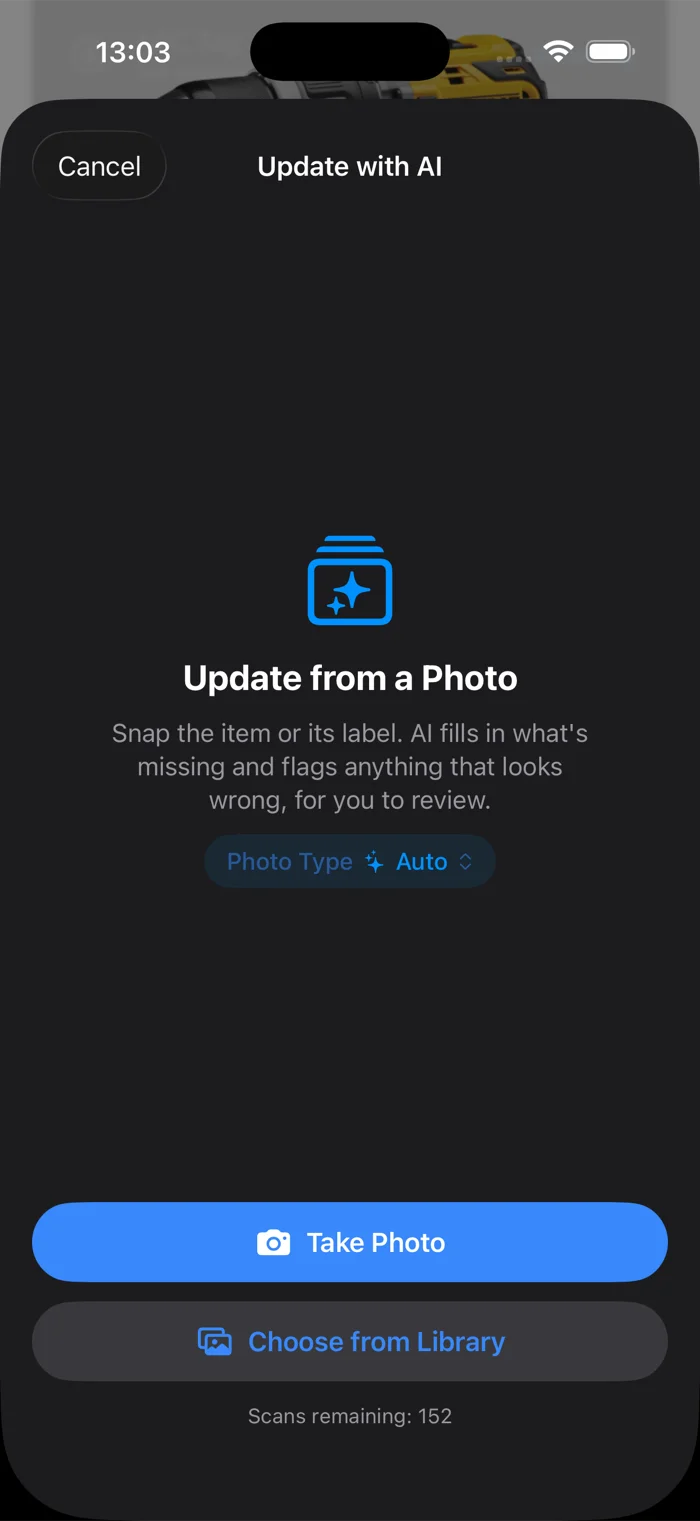
You do not have to tell it that it is a receipt. Leave the Photo Type on Auto and it works that out on its own, then reads it the right way. Setting the type yourself is there for when you want to be explicit, or for labels, manuals and boxes.
Receipts with more than one thing on them
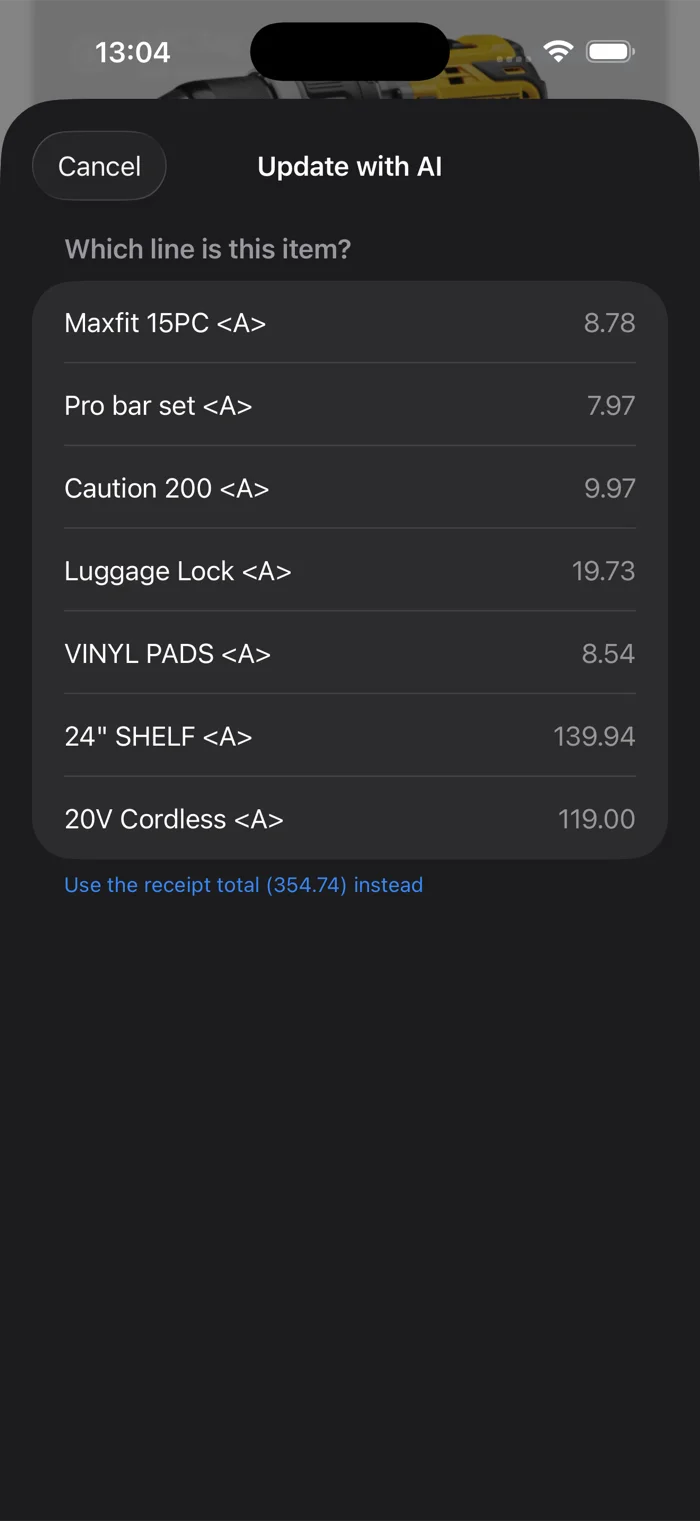
Most receipts have several lines and only one of them is the item you are recording. When that happens additem.to shows you the lines it read and asks which one is yours, so a shopping trip does not turn into a guess. If the whole receipt is for the one item, you can use the total instead.
You check it before anything is saved
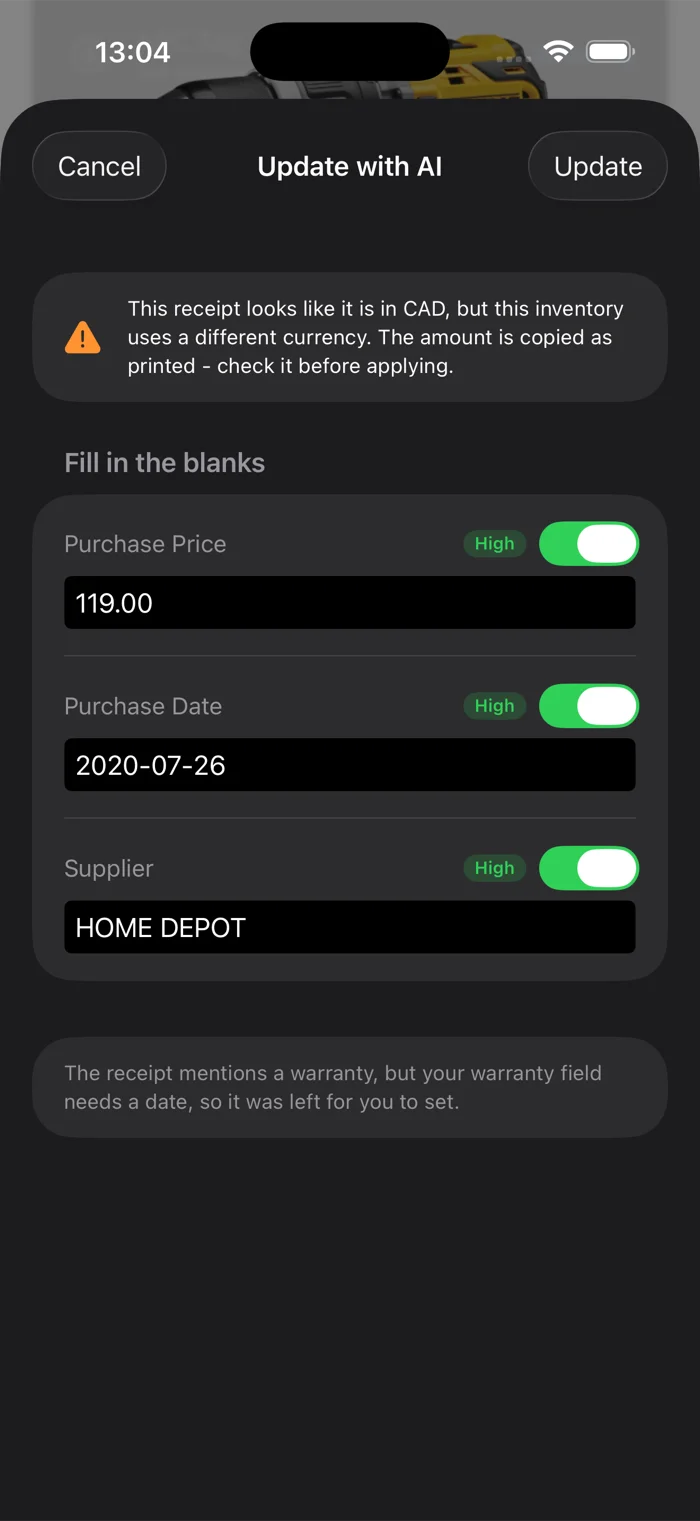
What the AI read lands in a review screen, not in your inventory. Each field has its own switch, so you can take the price and leave the date, and each one shows how confident the AI was. Nothing is written until you tap Update.
It also tells you when something needs a second look. If the receipt is in a different currency from the inventory, the amount is copied across exactly as printed and flagged rather than converted, because an exchange rate from the wrong day would be worse than no conversion at all. If the receipt mentions a warranty but your warranty field expects a date, it says so and leaves the field for you.
What happens to your photo
AI scanning is optional and only runs when you choose to scan. When you do:
- The photo is sent securely to OpenAI's API to generate the suggestions.
- OpenAI keeps the photo for up to 30 days to monitor for abuse, then deletes it, and does not use API data to train their models.
- additem.to does not store the photo for scanning - it's only saved if you choose to attach it to the item.
See our privacy policy for the full detail.
How many scans you get
A scan is one photo, whether or not the AI manages to identify the item.
- Free: 5 scans, to try it out.
- Pro Local: 40 scans a month.
- Pro Cloud: 200 scans a month.
Paid allowances refresh every month. See pricing for the full comparison.
If you would rather not use AI at all
AI scanning never runs on its own. It needs an account, a one off confirmation, and you tapping the button, so nothing is sent unless you start a scan.
If you would rather it was not in the app at all, turn on Local Only Mode in Settings, under Privacy. It hides every AI button along with signing in and cloud sync, and stops the app connecting to our servers. It is free on every plan and you can turn it back off whenever. There is more in the private home inventory guide.
Tips for better results
- Fill the frame with the item and avoid clutter behind it.
- Capture the label. If there's a model number, serial, or barcode, get it in shot - the AI only reads what it can see.
- Good light helps the camera and the AI both.
- Still quicker by hand for some things? Bulk or unbranded items (a box of screws) are often faster to type. Scanning shines on distinct, branded objects.
additem.to is a free iPhone app for home and small-business inventory. AI item scanning lets you build your inventory from photos - try it free, no account needed for everything else.
Download on the App Store