How to keep track of what's in your storage boxes
Boxes in the loft, the garage or a storage unit get opened once a year, if that. By then nobody remembers which one has the camping gear. This guide sets up a simple system in additem.to. Each box gets a QR label and a list of what's inside, so you can find anything by searching or scanning instead of opening boxes.
What you need
- additem.to on your iPhone. Everything here works on the free plan, with no account.
- Label sheets and a home printer, or a roll of pre-printed QR stickers.
- A marker pen, so each box also has a number you can read from across the room.
Setting up a box takes about two minutes, most of it spent putting things in it. You don't have to do every box at once. Start with the ones you open most.
Step 1: Set up where the boxes live
In additem.to, a box is a location inside another location. So first create the places your boxes sit in. Keep it as specific as you'd describe it out loud.
- Loft, with Left of the hatch and Right of the hatch inside it
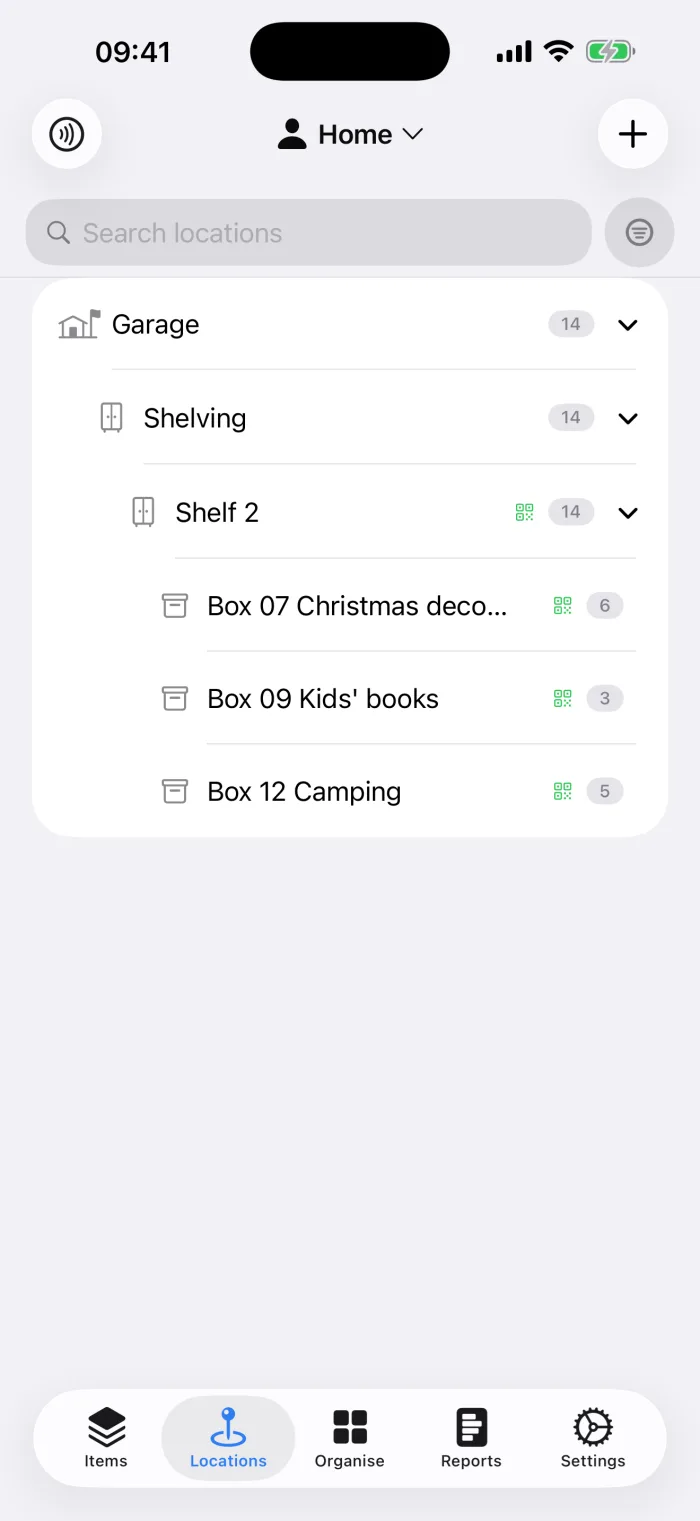
- Garage, with Shelving inside it, and Shelf 1 to Shelf 4 inside that
- Storage unit, if you rent one
Add each one from the Locations tab, and use New Sub-location on a location's screen to put one inside another.
Step 2: Make each box a location
Open the shelf or area the box will sit on and add a sub-location for the box. Set its type to Box. Give it a number and a few words about what's in it.
- Box 07 Christmas decorations
- Box 12 Camping
- Box 15 Baby clothes 0 to 6 months
The number matters more than the words. Contents change over the years, but Box 12 is always Box 12. Write the same number on the box in marker, so you can spot it without a phone.
Step 3: Label the box
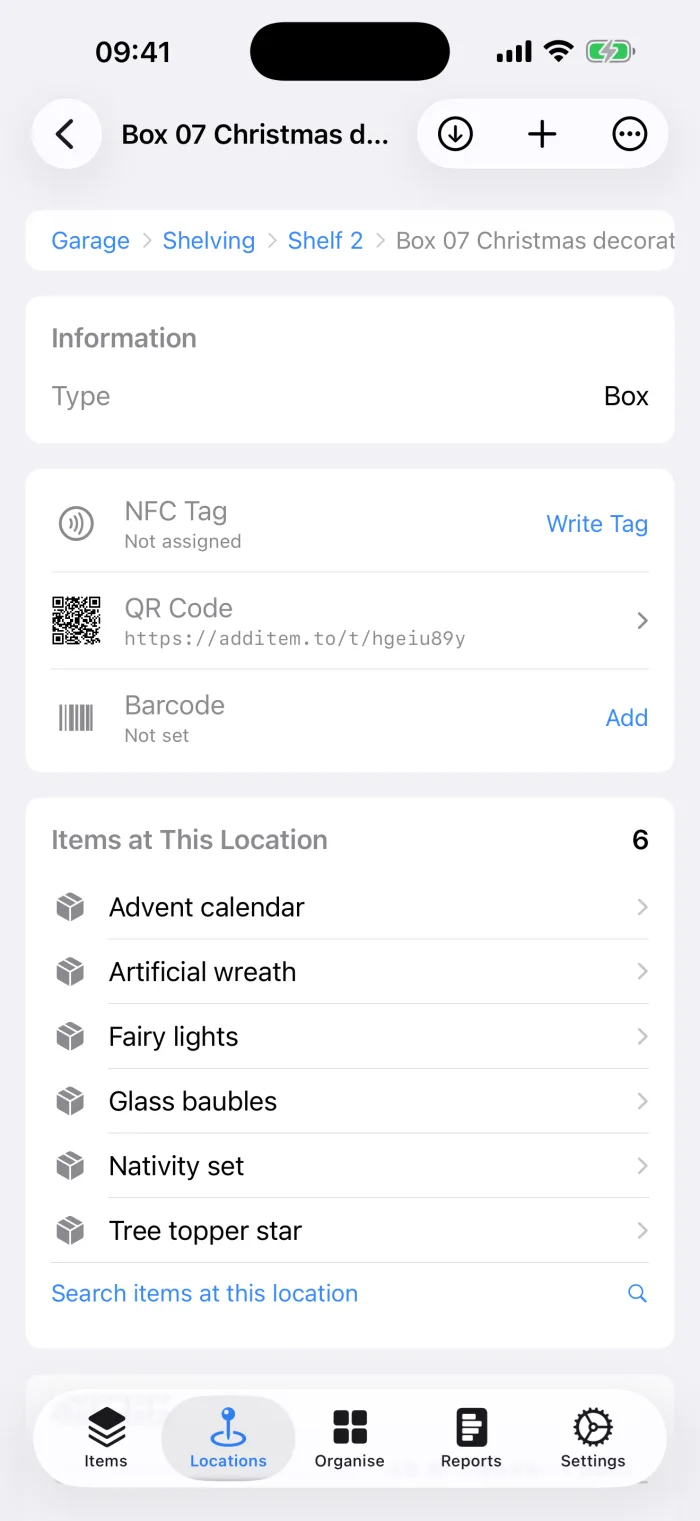
Open the box's screen and print a QR label for it. You can queue labels for several boxes and print one sheet, as the label printing guide explains. Pre-printed QR stickers work too. Scan one from the box's screen to link it. The difference is that labels the app prints also open from the iPhone Camera, while bought stickers only work through the scanner in the app.
Stick the label on two sides of the box, a short end and a long side. Boxes get stacked and turned around, and you want a label facing you whichever way it sits.
Step 4: Record what goes in
Add things from the box's own screen, so each one is already in the right box when you save it. Tap the add button, give it a name and take a photo. That's enough to find it later.
- A photo beats a long description. Months from now, a picture tells you instantly whether it's the right tent.
- Use one item with a quantity for sets of the same thing, such as 6 strings of fairy lights, rather than six separate items.
- Add things quickly with AI. Photograph a thing and AI suggests its name, brand and category for you to check and save.
- Add more detail only where it pays. For things worth insuring, a serial number and purchase price help with a claim. The insurance guide covers what to record.
Finding things later
This is where it pays off. There are two ways in, depending on what you know.
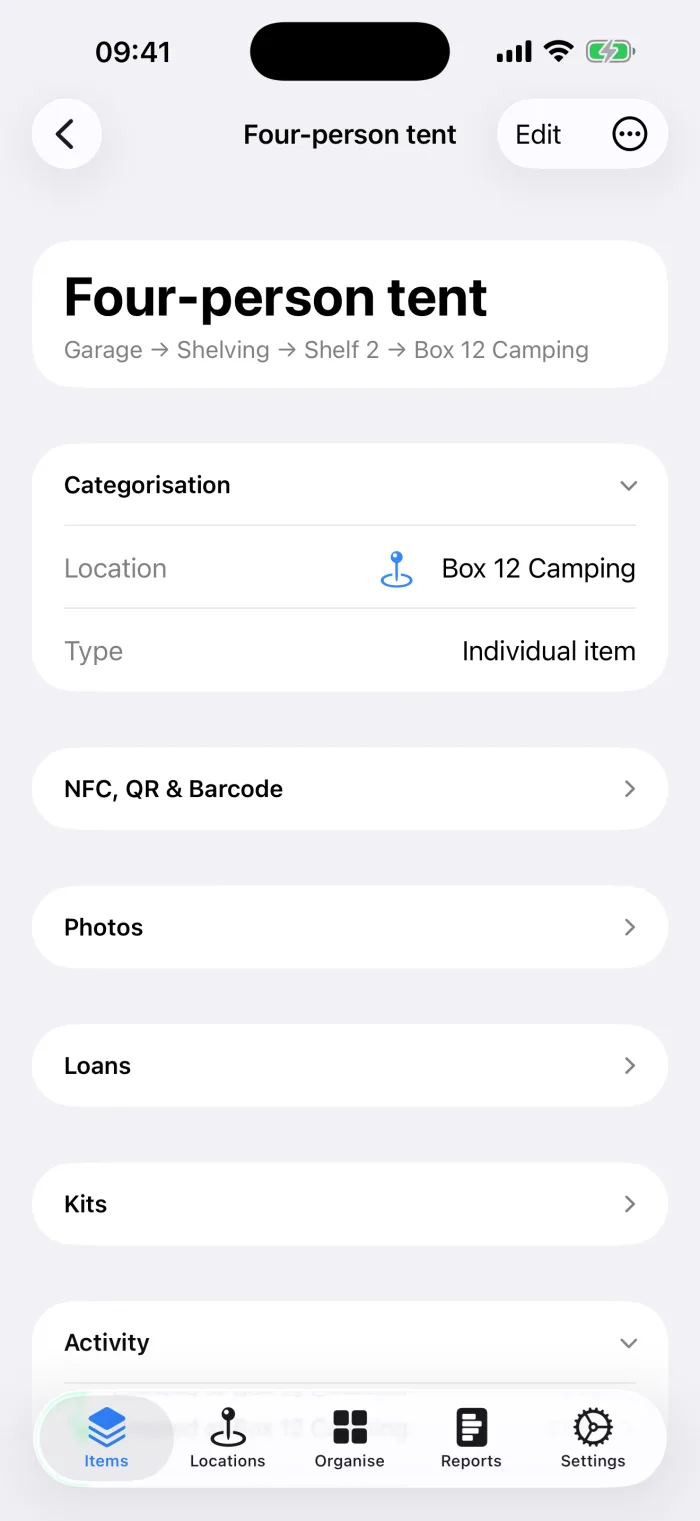
You know what you want but not where it is. Search for it by name and open it. The item shows the whole path, such as Garage, Shelving, Shelf 2, Box 12 Camping. You walk to the right shelf and take down one box.
You're looking at a box and want to know what's in it. Scan its label, with the iPhone Camera for a label the app printed or with the scanner in the app for any label. The box opens, and "Search items at this location" lists everything inside. It works with no signal, which matters in a loft or a storage unit.
Keeping it up to date
A list of a box's contents is only useful while it's right. These keep it right without much effort.
- Take something out for good? Move the item to where it now lives, or delete it. It takes a few seconds while you're standing at the box.
- Moving a box to another shelf? Edit the box and choose its new parent location. Everything inside stays in the box, so it moves with it.
- Emptying a box? Use Move All Items on the box's screen to send everything to one place in one go.
- Repacking every year? Seasonal boxes are a good time to check the list. The Christmas box is open anyway.
A few tips that help
- Label the shelves too. A QR label or an NFC tag on each shelf lets you see every box on it with one scan. NFC suits spots you visit often, because a tap is quicker than aiming the camera.
- Keep the numbers going. Don't reuse a number when a box is emptied. Give new boxes the next number, so old notes and photos never point at the wrong box.
- Share it with your household. With Pro Cloud, everyone can look things up on their own phone, and a change on one shows up on the others. The sync guide explains how.
- Moving house? The same system works for moving boxes. The moving house guide covers packing and unpacking.
additem.to is a free iPhone app for keeping track of what you own and where it is. Locations, QR labels and scanning are all on the free plan, with no account and no item limit.
Download on the App Store